Remote Diagnostics
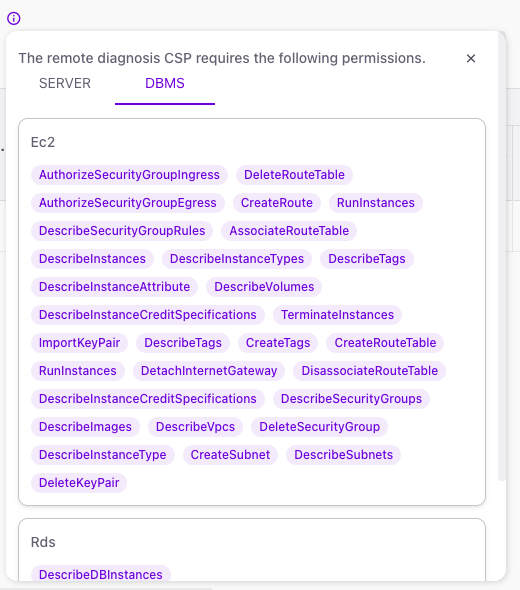
Remote Diagnostics Permission Inquiry
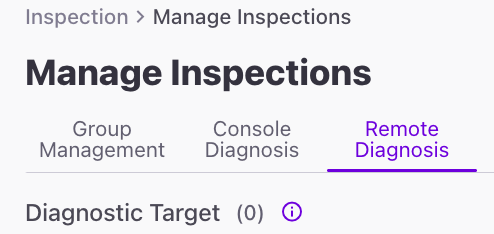
To inquire about console diagnosis permissions, click the ⓘ button.
How to Execute
- Click the
Inspection > Inspection Management > Remote Diagnosticstab to access remote diagnostics. - Select the
group you want to inspectfrom the group list.
Remote diagnostics are conducted based on the selected group. Please create a group first before starting remote diagnostics.
How to Create a Group
Click the
Remote Diagnostics tab.
Click the
Diagnosis Button.
Enter a diagnosis title (to specify what the inspection is about) and click the
Diagnosis Button.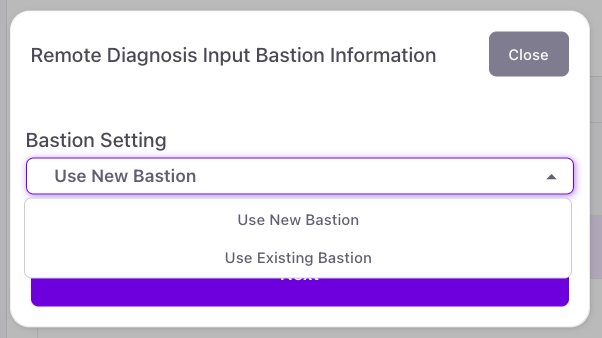
5-1. If using an existing server, enter the information of the server you want to use.
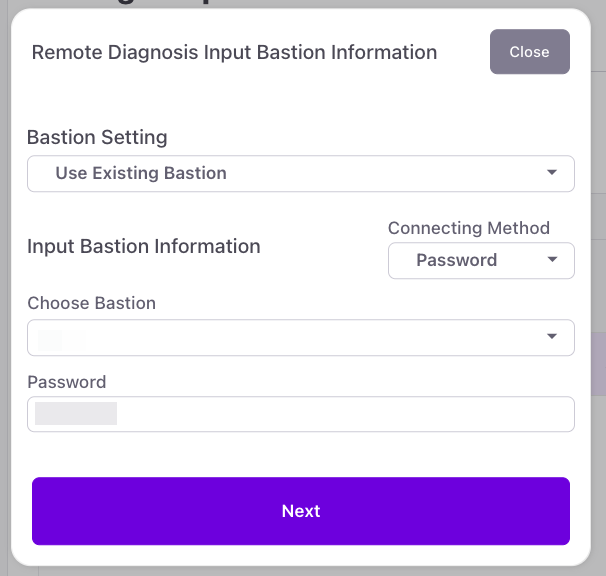
Enter a diagnostic title (indicating what the inspection is about), then click the
Start Diagnosisbutton.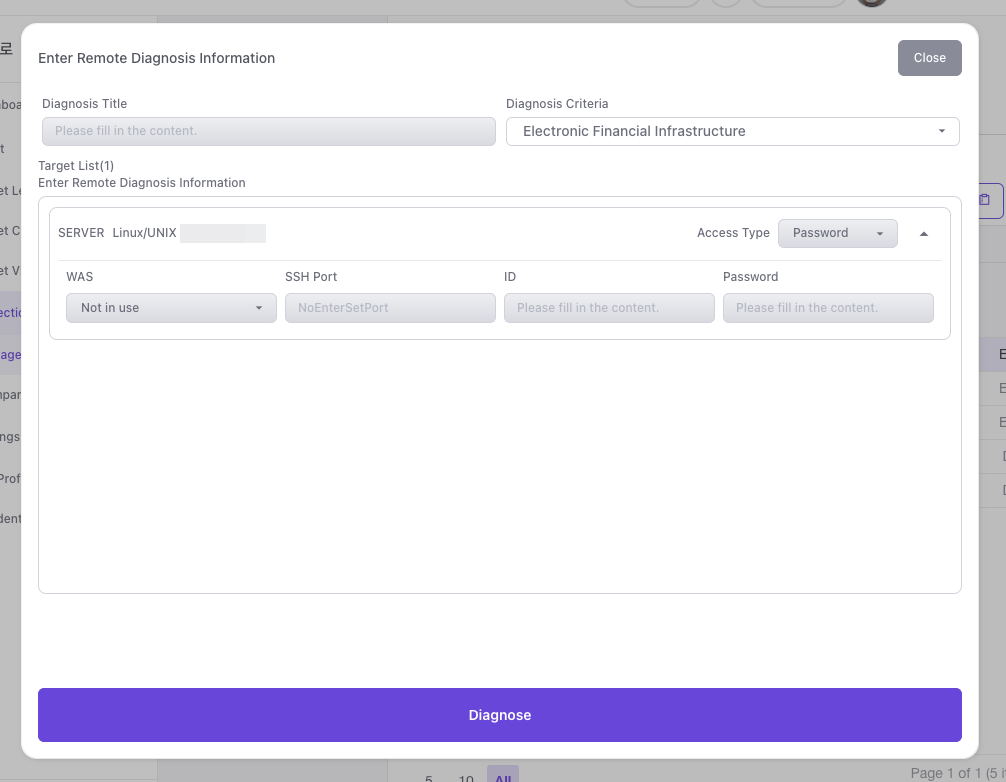
Inspection Result Details
You can view detailed results for each column in the table. Click on the item you want to review.
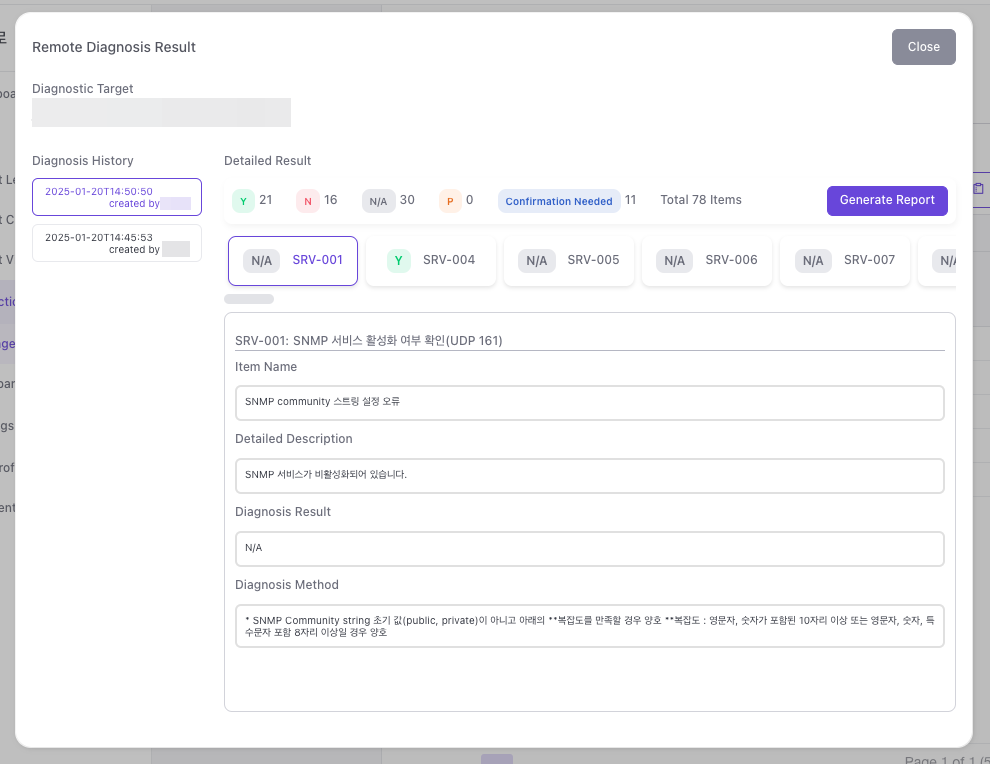
Detailed Results Table
3-1. Title
3-2. Item Name
3-3. Detailed Description
3-4. Diagnosis Result
3-5. Diagnosis Method
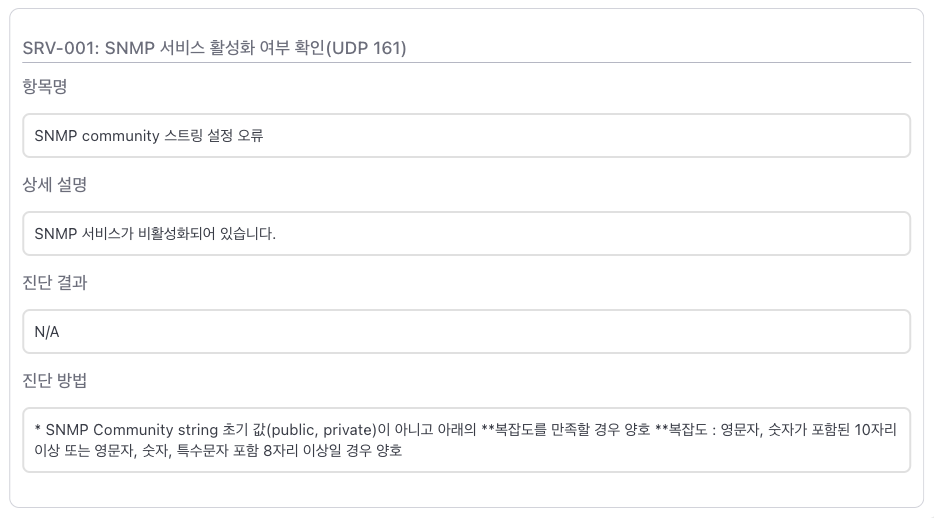
If you navigate away from the page without clicking the Save Changes button after editing the details, the changes will not be applied.
Report Generation
Once the inspection is complete, you can view the results in a table. The table includes six columns: Scope, Item Name, Inspection Criteria, Priority, Inspection Result, and Inspection Result Details.
For more detailed information about Inspection Criteria, refer to here.
CS Checker provides two types of reports: Excel and Word.
Report
To download the report file, click the
Report Button.
Select the compliance and click the
Generate Button.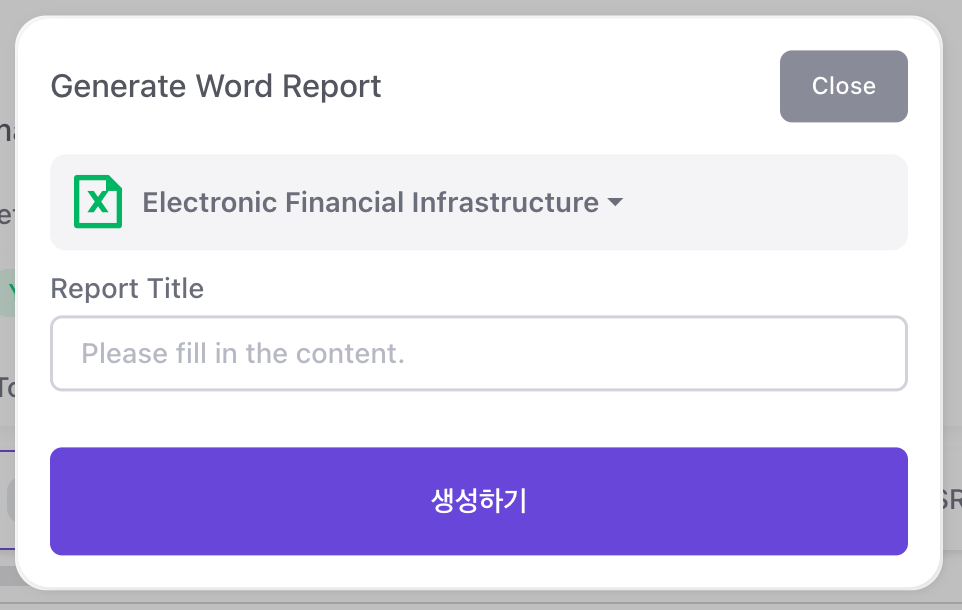
Open the Excel file to review the inspection details.
3-1. Cover Page
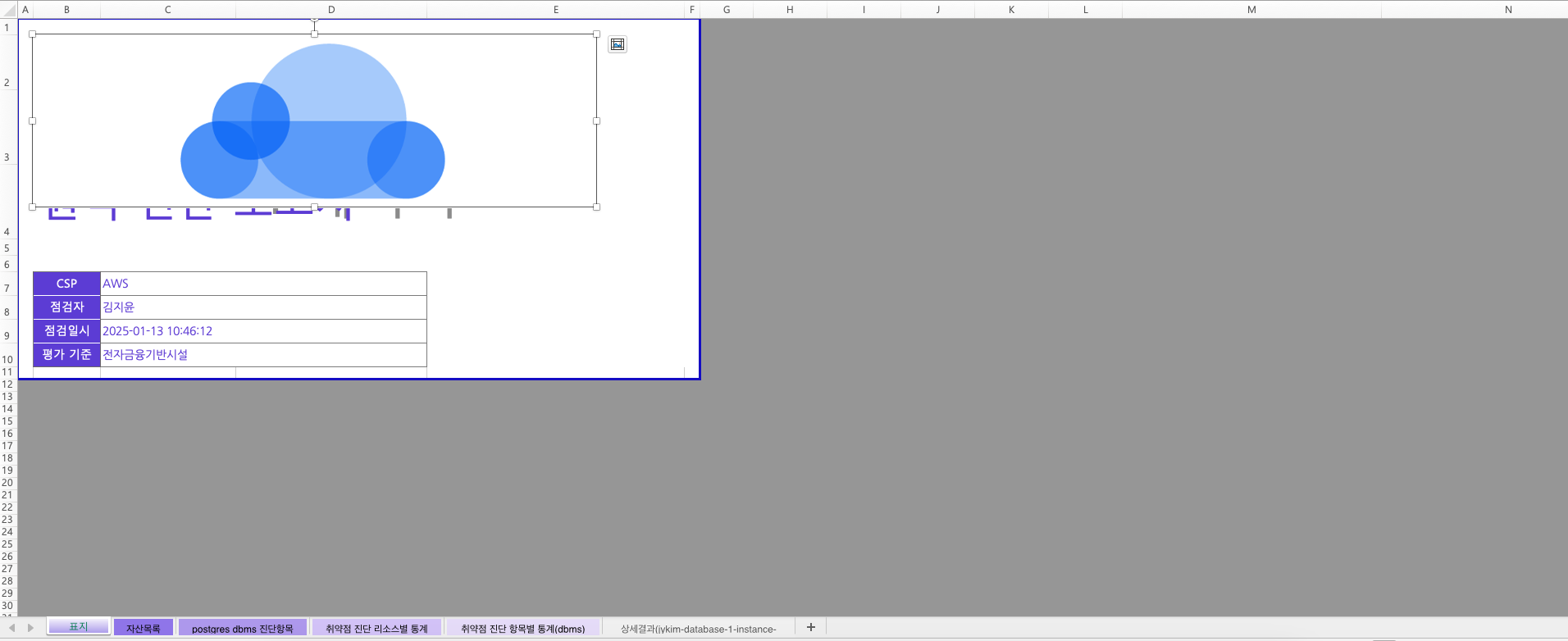
3-2. Asset List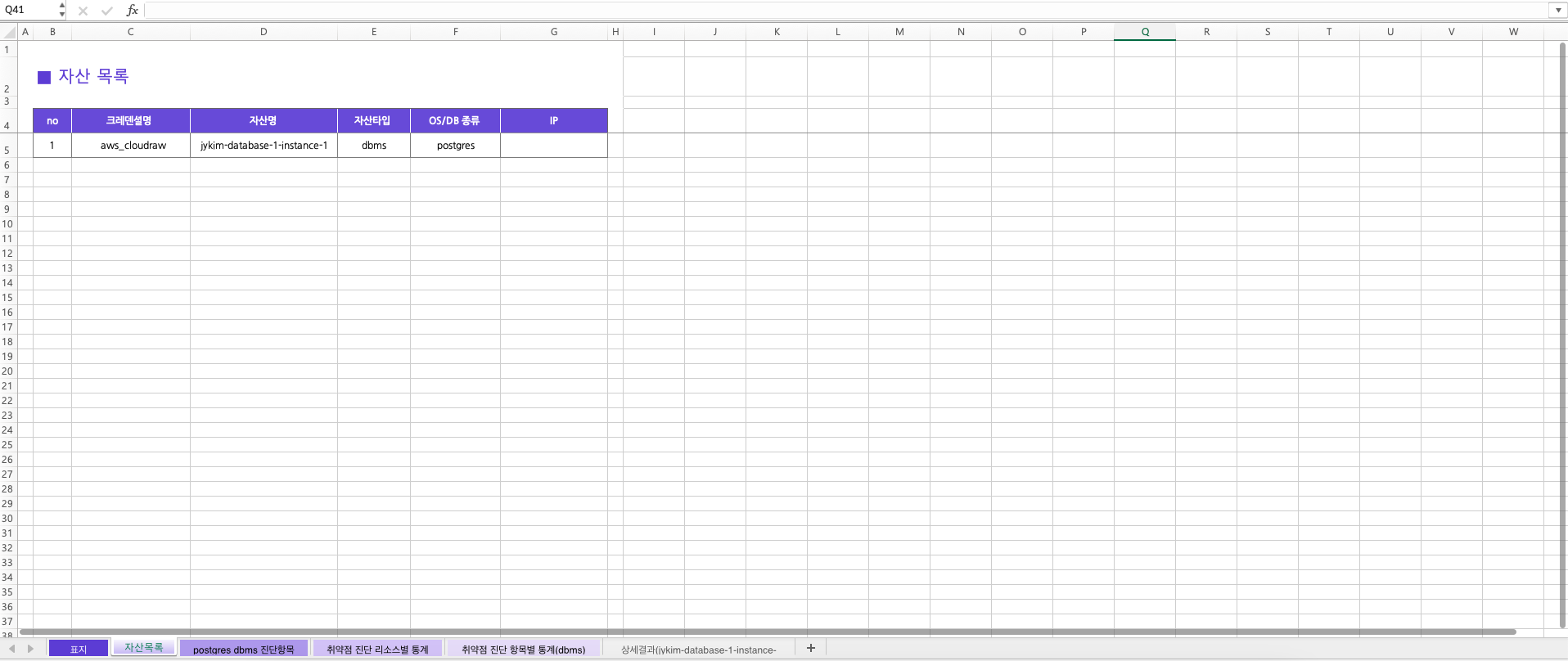
3-3. postgres [Resource Type] Diagnostic Items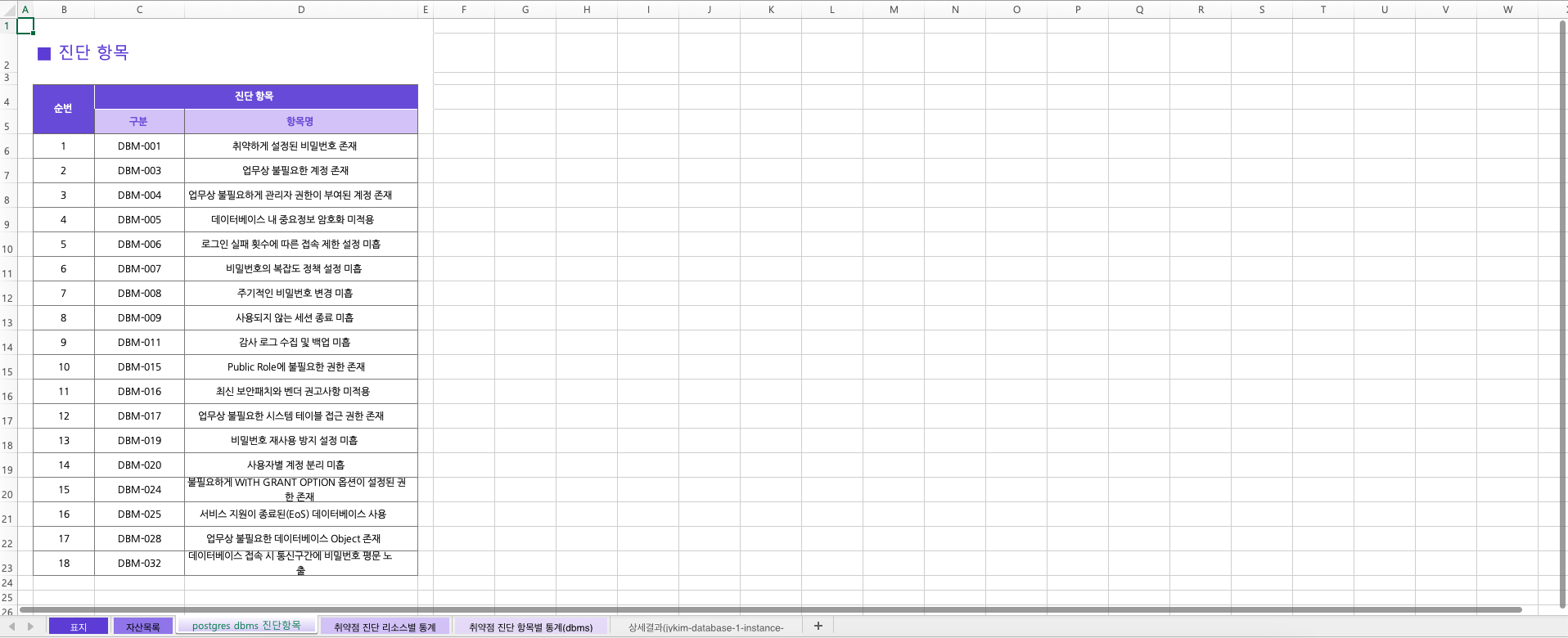
3-4. Vulnerability Diagnosis by Resource Statistics [Resource Type]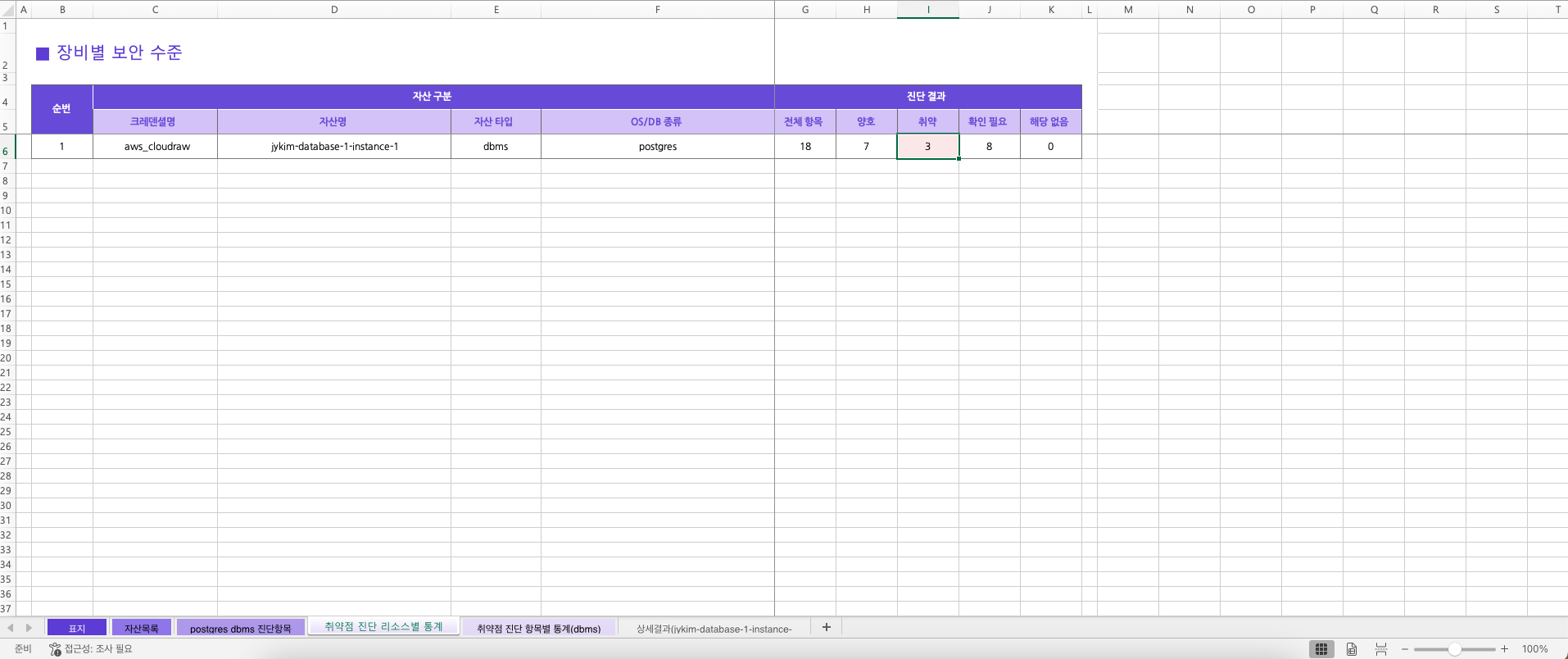
3-5. Vulnerability Diagnosis by Item Statistics [Resource Type]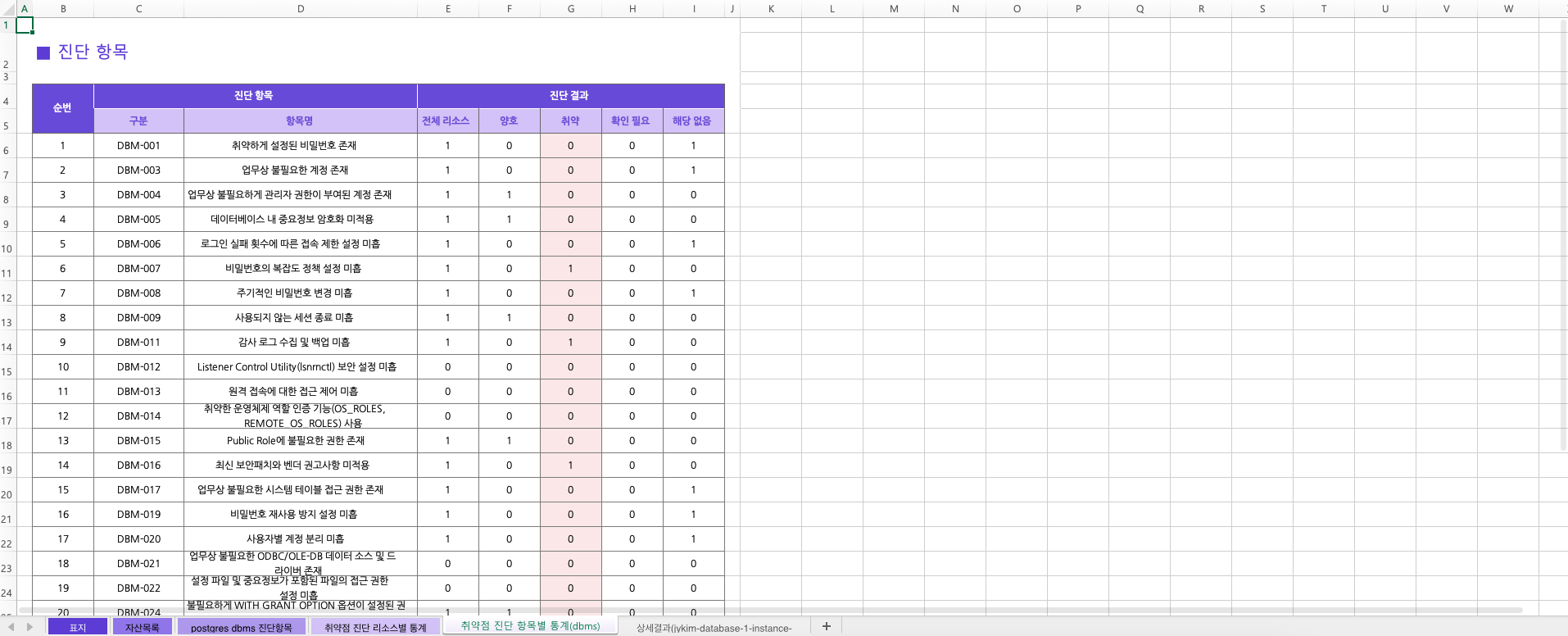
3-6. Detailed Results [Resource Name]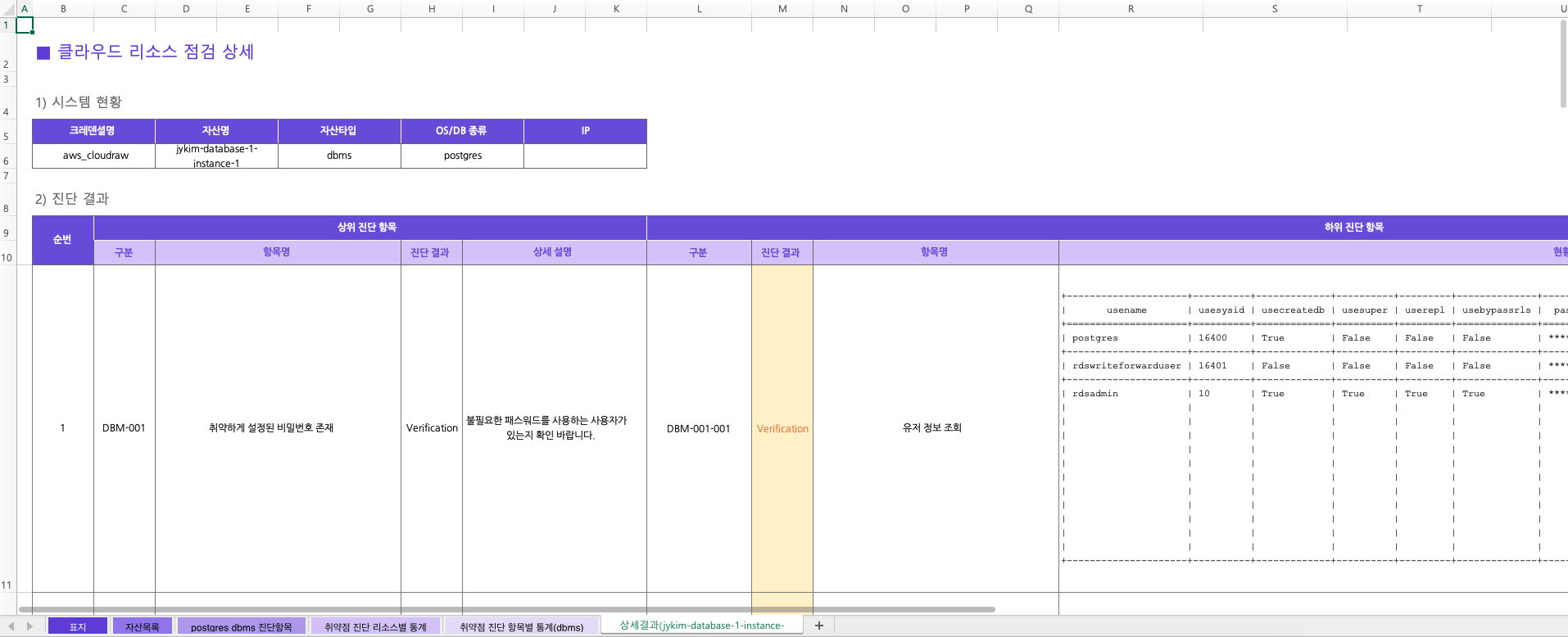
Diagnosis History Check
In the diagnosis history, you can view the
Inspection Title, Execution Date & Time, and Inspector.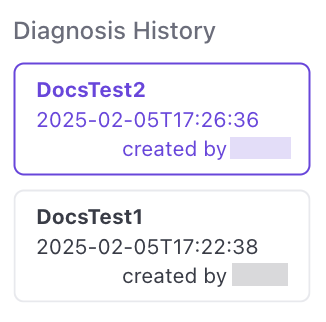
You can click on the history you want to navigate to and review the corresponding diagnosis details.